Directors: Clusters
Clusters group multiple Directors together for high availability. When one Director fails, the remaining Directors automatically take over its workload. Agents and Devices connect to the cluster as a whole, ensuring continuous operation as long as at least one Director remains healthy.
Provider → Device → Preprocessing → Pipeline → Postprocessing → Target → Consumer
Cluster (groups Directors for high availability and automatic failover)
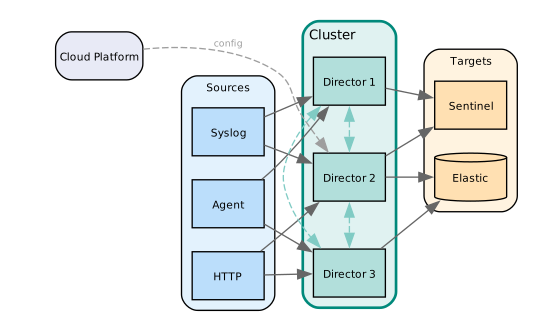
Once a Director is added to a cluster, it cannot be individually modified, updated, or removed. All configuration changes must be made at the cluster level. The only way to release a Director from a cluster is to delete the entire cluster, after which the Director returns to standalone status.
Access
The Directors page displays two tabs: Directors and Clusters. Click the Clusters tab to manage cluster configurations. The Clusters tab requires CLUSTER_READ permission.
Overview
The Clusters table displays all configured clusters with the following columns:
| Column | Description |
|---|---|
| Name | Cluster identifier |
| Type | Management type (Managed or Self-Managed) |
| Status | Operational state (Enabled/Disabled) |
| Directors | Count showing healthy vs total (e.g., "2 up 1 down") |
| Actions | Menu for cluster operations |
Table Controls:
Filter clusters using Search clusters (by name) and Status dropdown (All, Enabled, Disabled). The
Create Cluster Wizard
The cluster creation process guides you through a 3-step wizard.
Step 1: Cluster Details
Basic Configuration:
- Cluster Name - Unique identifier for the cluster
- Port - Communication port for cluster coordination (default: 8081)
- Type - Management approach:
- Managed: VirtualMetric manages cluster infrastructure
- Self-Managed: User controls cluster deployment and configuration
Director Selection:
Select Directors to include in the cluster. Requirements:
- Minimum 3 Directors, maximum 15
- Must be an odd number (3, 5, 7...) for quorum
- Directors must match cluster type (Managed or Self-Managed)
- Only Directors with "Connected" status can be added
- Only Directors not previously configured can be added
For each Director, specify:
- Director - Select from available Directors dropdown
- IP Address - Auto-populated from Director configuration
- Port - Communication port (auto-populated, editable)
Directors already assigned to a cluster or previously configured are not available for selection.
Step 2: Cluster Configuration
TLS Settings:
Configure encrypted communication between cluster members:
- Enable TLS - Toggle to enable/disable TLS encryption
- Certificate - TLS certificate content (required if TLS enabled)
- Private Key - TLS private key content (required if TLS enabled)
Step 3: Access Management
Access Restriction:
Restrict which IP addresses can connect to the cluster:
- Enable Access Restriction - Toggle to enable IP filtering
- Restriction Type:
- Single Block - Single IP address
- Range - IP address range (start-end)
- CIDR - CIDR notation (e.g., 10.0.0.0/8)
- Sources - List of allowed IP addresses/ranges
Access Tokens:
Create authentication tokens for Agents and Devices connecting to the cluster:
- Enable Access Tokens - Toggle to require token authentication
- Token Name - Identifier for the token
- Token Value - Auto-generated when token is created (use copy button to copy)
- Expiration - Token validity period (default: 3 months):
- 1 month
- 3 months
- 1 year
- Unlimited
Click
Detail View
Clicking a cluster from the overview table opens the detailed management interface with four tabbed panels.
Cluster Details Tab
View cluster configuration and Director membership:
Cluster Information:
- Name - Cluster identifier
- Type - Managed or Self-Managed
- Port - Cluster communication port
- Status - Enabled or Disabled
Directors Table:
Lists all Directors in the cluster with:
- Name - Director identifier
- IP Address - Director network address
- Port - Director communication port
- Status - Connection status (Connected/Not Connected)
Cluster Configuration Tab
View and edit TLS settings:
- TLS Status - Enabled or Disabled
- Certificate - Current certificate content
- Private Key - Current private key content
Click
Access Management Tab
View and edit access controls:
Access Restriction:
- Current restriction status and configured sources
- Edit to add, remove, or modify IP restrictions
Access Tokens:
- List of configured tokens with expiration dates
- Create new tokens or revoke existing tokens
Cluster Activity Logs Tab
Track cluster operations and lifecycle events:
| Column | Description |
|---|---|
| User | Email of user who performed action |
| User IP | IP address from which action was performed |
| Object Type | Always "Cluster" for this view |
| Object | Name of affected cluster |
| Action | Operation performed |
| Action Description | Detailed description |
| Created At | Timestamp of action |
Action Types:
- CreatedCluster - New cluster created
- UpdatedCluster - Cluster configuration modified
- DeletedCluster - Cluster removed
Cluster Operations
Enable / Disable
To change cluster status:
- Navigate to cluster detail view or use Actions menu from overview
- Click Actions menu
- Select
Enable Cluster orDisable Cluster - Confirmation notification confirms status change
Disabling a cluster also disables all member Directors. Re-enabling restores previous Director states.
Download Config
For Self-Managed Clusters:
Download the cluster configuration file:
- Navigate to cluster detail view
- Click Actions menu
- Select
Download Config - Deploy downloaded configuration to each Director in the cluster
Delete
Delete Cluster Process:
- Navigate to cluster detail view or use Actions menu
- Click Actions menu
- Select
Delete Cluster - Confirm deletion in modal dialog
Clusters with assigned Devices cannot be deleted. Reassign or remove all Devices from cluster Directors before deletion.
Deleting a cluster also removes all Director associations. The Directors themselves are not deleted but return to standalone status.
Auto Update
Cluster Auto Update coordinates version updates across all member Directors. When configured at the cluster level, updates propagate to all Directors while maintaining cluster availability.
Cluster Update Configuration
Configure Auto Update in the cluster configuration to apply settings uniformly across all member Directors:
| Property | Type | Required | Description |
|---|---|---|---|
| mode | string | Y | Set to auto to enable automatic updates |
| method | string | Y | Update trigger method: immediate or schedule |
| version | string | Y | Target version for all cluster Directors |
| cron | string | N | Cron expression for scheduled updates (minimum 30 seconds) |
| interval | duration | N | Fallback polling interval (default: 30s minimum) |
Example Cluster Update Configuration:
update:
  mode: auto
  method: schedule
  version: "2.5.0"
  cron: "0 2 * * 0"  # Every Sunday at 2:00 AM
Rolling Update Behavior
Cluster updates follow a rolling update pattern to maintain availability:
- Quorum Preservation - Updates proceed only while quorum is maintained
- Sequential Updates - Directors update one at a time, not simultaneously
- Health Verification - Each Director must report healthy before the next update begins
- Automatic Failover - Workloads shift to remaining Directors during individual updates
During a rolling update, cluster capacity is temporarily reduced. Schedule updates during low-traffic periods for production clusters.
Cluster Health Monitoring
Monitor cluster update progress through health reporting:
| Field | Description |
|---|---|
| version | Current running version per Director |
| scheduled_version | Target version pending update |
| cluster_update_status | Overall cluster update progress |
The cluster detail view displays version information for each member Director, allowing you to track update progress across the cluster.
Update Considerations
Minimum Cluster Size:
Rolling updates require at least 3 healthy Directors to proceed. Clusters at minimum size (3 Directors) have reduced fault tolerance during updates.
Mixed Version Operation:
During rolling updates, the cluster temporarily operates with mixed versions. DataStream maintains backward compatibility between adjacent versions to ensure seamless operation.
Rollback Behavior:
If a Director fails to update, it automatically rolls back to the previous version and rejoins the cluster. The cluster continues operating while the failed update is investigated.
Do not manually update individual Directors in a cluster. Use cluster-level Auto Update configuration to ensure coordinated updates and maintain cluster consistency.